
Operator map: what role each node plays
A small plan can contain lookups, filters, joins, calculations, and sorts in the same branch. Reading their names as an isolated list requires memorizing icons; grouping them by function makes it possible to reconstruct the plan’s work.
The name describes an operation
Each box in the plan is an operator: a unit of work that receives rows, performs an operation, and sends rows to the next node. Some operators read a table or index; others transform, combine, order, or preserve the rows they receive.
The icon helps locate the node, but it is not enough to interpret it. Two operators can share an icon or a word while performing different work. Hash Match, for example, can participate in a join or an aggregate. Read the complete name, its inputs, and its properties before assigning a meaning.
Logical operation and physical operator
The logical operation states what the query needs: join sets, order rows, or form groups. The physical operator describes the mechanism SQL Server selected to perform that work.
A logical join can be executed through Nested Loops, Hash Match, or Merge Join. The query retains the same logical intent, but the optimizer can choose different physical mechanisms according to its estimates, the available structures, and the required properties.
Not every node displays both names separately. When they are available, inspect them in the tooltip or the Properties window through fields such as Logical Operation and Physical Operation.
Seven families for orientation
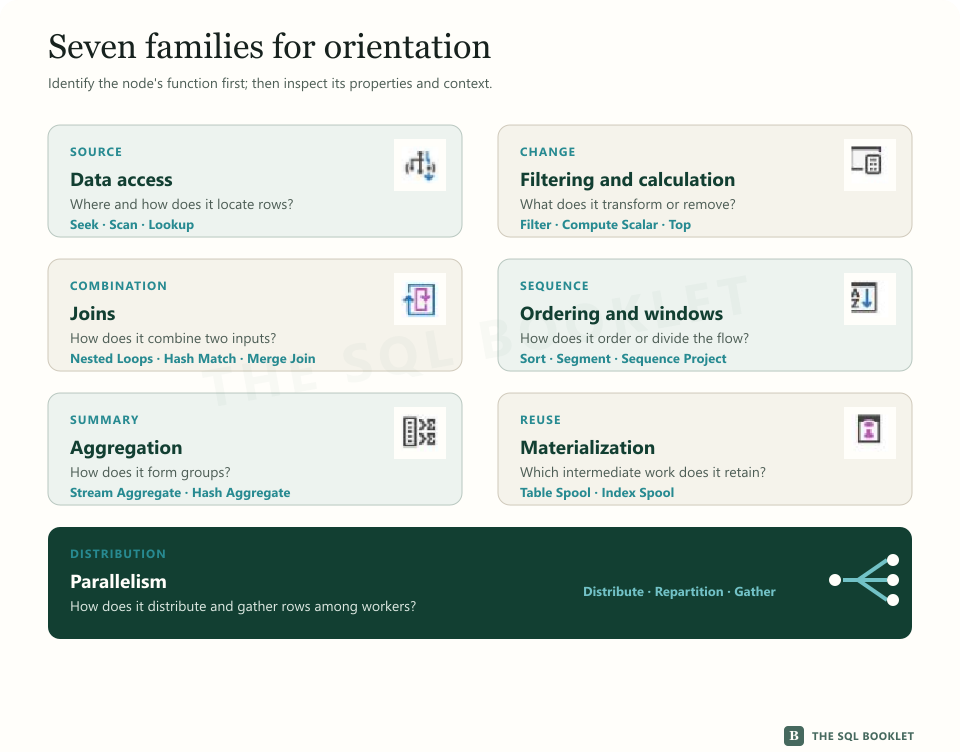
The map groups common operators by the question they help answer. It does not classify a family as good or bad, and it does not replace reading the node’s properties.
The first six symbols reproduce icons used by SSMS. In the general map, the parallelism symbol summarizes flow distribution; the strip for each family then shows the individual icons with their complete names.
Data access
Answers where the rows came from and how they were located. This family includes Index Seek, Index Scan, Table Scan, and Key Lookup. Read the object used, rows read, rows returned, and predicates together.


Filtering and calculation
Answers which expression transforms or removes rows. Filter applies a condition; Compute Scalar adds the result of a calculation; Top limits how many rows continue. Their presence describes work but does not establish a problem by itself.


Joins
Answers how two inputs were combined. Nested Loops, Hash Match, and Merge Join are different physical strategies for performing a join. Examine them together with volume, ordering, memory, and the execution count of each input.


Ordering and windows
Answers how rows were ordered or divided for a later calculation. Sort establishes an order; Segment marks group boundaries within an ordered input; Sequence Project adds calculations over that sequence, such as a row number.


Aggregation
Answers how rows were reduced into groups or accumulated results. Stream Aggregate uses an ordered input; Hash Match (Aggregate) forms groups through a hash structure. Both can implement aggregation, but they do not require the same conditions.


Materialization
Answers which intermediate result was preserved for reuse. Spool operators store rows temporarily. Check what they build, how many times it is reused, and whether that work prevents a more expensive operation from being repeated.


Parallelism
Answers how the flow was distributed among workers and brought back together. A Parallelism operator can distribute, repartition, or gather rows. Read the specific operation instead of relying only on the icon.


The family does not determine the diagnosis
Classifying an operator establishes its role in the branch. It does not yet show whether that choice was appropriate for the actual volume or whether it explains the observed symptom.
A Scan can be reasonable when the query needs a large portion of a table. A Sort can be necessary to produce the requested order. A Spool can avoid repeated work. Even an operator with a small estimated cost can matter when it executes thousands of times.
Evaluation begins after describing:
- which rows the operator receives;
- which work it performs;
- which rows it returns;
- how many times it executes;
- what SQL Server estimated and what happened during execution;
- which properties or warnings refine that reading.
How to investigate an unfamiliar operator
When a name is unfamiliar, preserve the plan’s thread without guessing:
- read the operator’s complete name;
- identify how many inputs it receives and where it sends rows;
- open Properties and distinguish logical and physical operations when available;
- inspect the object, predicate, output columns, rows, and executions;
- consult the operator reference and return to the context of that branch.
The definition explains the general mechanism. The specific plan shows why it participates in that query and how much work it performed during that execution.
What this still does not establish
Recognizing each node’s family does not prove that a plan is efficient or automatically identify what should change. Evaluating a decision requires comparing estimates with observations and then relating them to reads, CPU, duration, memory, and workload context.
Next reasonable check
The next article compares estimated and actual rows within the same operator. That comparison moves from the general role of each node to a first observable difference between what SQL Server expected and what it encountered.