
Filter, Compute Scalar, and Top
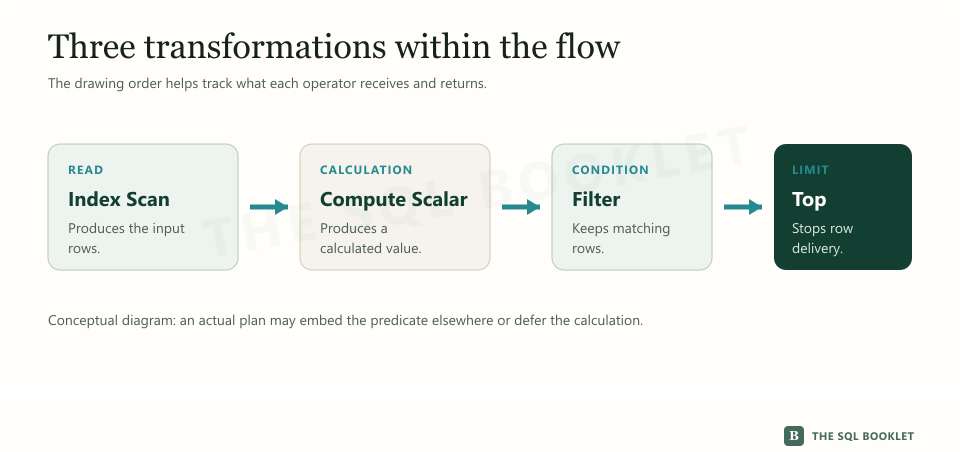
Not every operator finds data or relates tables. Some receive an existing stream and transform it: discard rows, calculate a column, or stop returning rows after reaching a limit.
These operators are often small in the diagram, but they help reconstruct what happened between the initial read and the result. Their presence describes work; it does not prove a problem by itself.
How to open the plans used in this article
Enable Include Actual Execution Plan with Ctrl+M and run each query separately. Then open Execution plan. Hover over the operator you want to inspect, or select it and press F4; Defined Values, Predicate, and row counts appear in the tooltip or in Properties, depending on the operator.
The Results tab contains the rows returned by the query. Each screenshot in this article comes from Execution plan, not from an additional result grid produced by the SELECT.
Compute Scalar: producing a calculated value
Compute Scalar evaluates an expression and adds its result to the stream. An expression combines values, operators, and functions to produce a new value, such as a multiplication, conversion, or condition.
This query calculates a total including tax for the first ten rows:
SELECT TOP (10)
    p.IdPedido,
    p.Total,
    p.Total * CONVERT(DECIMAL(5, 2), 1.16) AS TotalConImpuesto
FROM dbo.PedidoLaboratorio AS p
ORDER BY p.IdPedido;
The compiled plan contains Clustered Index Scan, Compute Scalar, and Top. In the Compute Scalar properties, Defined Values shows the expression and the internal name of the value it produces.
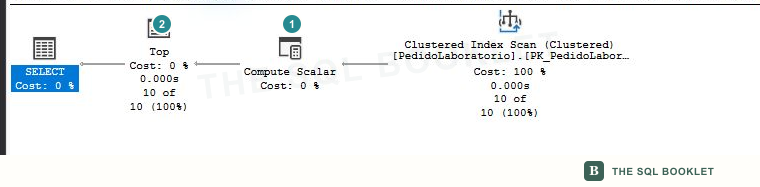
- 1Calculated value
Compute ScalaraddsTotalConImpuestoto the stream; inspectDefined Valuesfor the exact expression. - 2Row limit
Topreturns ten rows. The order byIdPedidodetermines which rows occupy those first positions.
The icon position does not guarantee that all calculation happens at that exact point. SQL Server can defer an expression until another operator needs the value, so some plans do not show their own rows or runtime for Compute Scalar. First inspect the expression and the operator that consumes it.
Top: limiting the stream
Top returns a limited number of rows and stops requesting them when it reaches that limit. It can come from TOP, pagination, or a transformation that lets the optimizer establish an early boundary.
In the previous query, ORDER BY p.IdPedido defines which rows are the first ten. Without deterministic order, TOP (10) limits the count but does not identify which ten rows must be preserved.
Inspect these properties:
Top Expression, which contains the limit;Is Percent, which distinguishes a row count from a percentage;With Ties, when the boundary preserves ties from the stated order.
A limit can influence the alternatives considered by the optimizer. That does not turn every Top into an improvement: verify which rows were requested and whether an order identifies them.
Filter: preserving rows that satisfy a predicate
Filter receives rows and evaluates a predicate, an expression whose result determines whether each row continues or is discarded. A condition written in WHERE does not always produce a Filter icon: when possible, it can be placed inside the operator that reads the data.
To observe a separate Filter, this query calculates a position and then preserves rows 11 through 20:
SELECT
    q.IdPedido,
    q.Total,
    q.Posicion
FROM
(
    SELECT
        p.IdPedido,
        p.Total,
        ROW_NUMBER() OVER (ORDER BY p.IdPedido) AS Posicion
    FROM dbo.PedidoLaboratorio AS p
) AS q
WHERE q.Posicion BETWEEN 11 AND 20;
ROW_NUMBER produces the position before Filter can evaluate it. The compiled plan contains Segment and Sequence Project to build that sequence; the following topic explains those operators. It also contains Top, because the upper boundary lets processing stop after row 20.
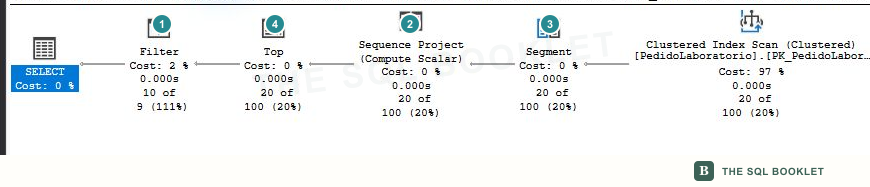
- 1Applied condition
Filterpreserves positions 11 through 20. The exact condition appears underPredicate. - 2Calculated position
Sequence Projectadds the value produced byROW_NUMBER. - 3One group
Segmentprepares the signal used by the sequence; withoutPARTITION BY, every row belongs to the same logical group. - 4Early stop
Topallows numbering to stop after position 20;Filterthen discards the first ten positions.
The Predicate property shows the applied condition. Compare incoming and outgoing rows to see its effect. A large difference describes selectivity at that point, but it does not yet establish whether the earlier read could have been avoided.
The same predicate can appear elsewhere
When a condition can be evaluated during an Index Seek, it appears under Seek Predicates. If it is evaluated while a Scan reads rows, it may appear as a Predicate on that access operator. The separate Filter icon is used when the plan needs another operator.
Do not search for the icon to decide whether a query filters. Follow the condition from the SQL text to the property where the plan placed it, then compare rows read, received, and returned.
What to inspect in the plan
| Operator | Initial property | Next question |
|---|---|---|
Compute Scalar |
Defined Values |
What expression does it produce, and where is it used? |
Top |
Top Expression and available order |
Which rows form the boundary? |
Filter |
Predicate and input/output rows |
Could the condition be applied during data access? |
What this still does not establish
A Compute Scalar is not expensive merely because it evaluates an expression; Top does not guarantee a small read; and Filter does not prove that an index is missing. Cost depends on how many rows arrive, how often the operator runs, and what work happened earlier.
The next reading must preserve the correct result and relate these operators to order, estimates, and observed properties.
Next reasonable check
Continue with Nested Loops, Hash Match, and Merge Join to see how two inputs become one stream.